
Live in the pilot
The tools, in plain language
Make a job first. Photos, the roof drawing and the material list you create inside that job stay together. Pictures below are the sample company in the app demo.
Jobs and the pipeline
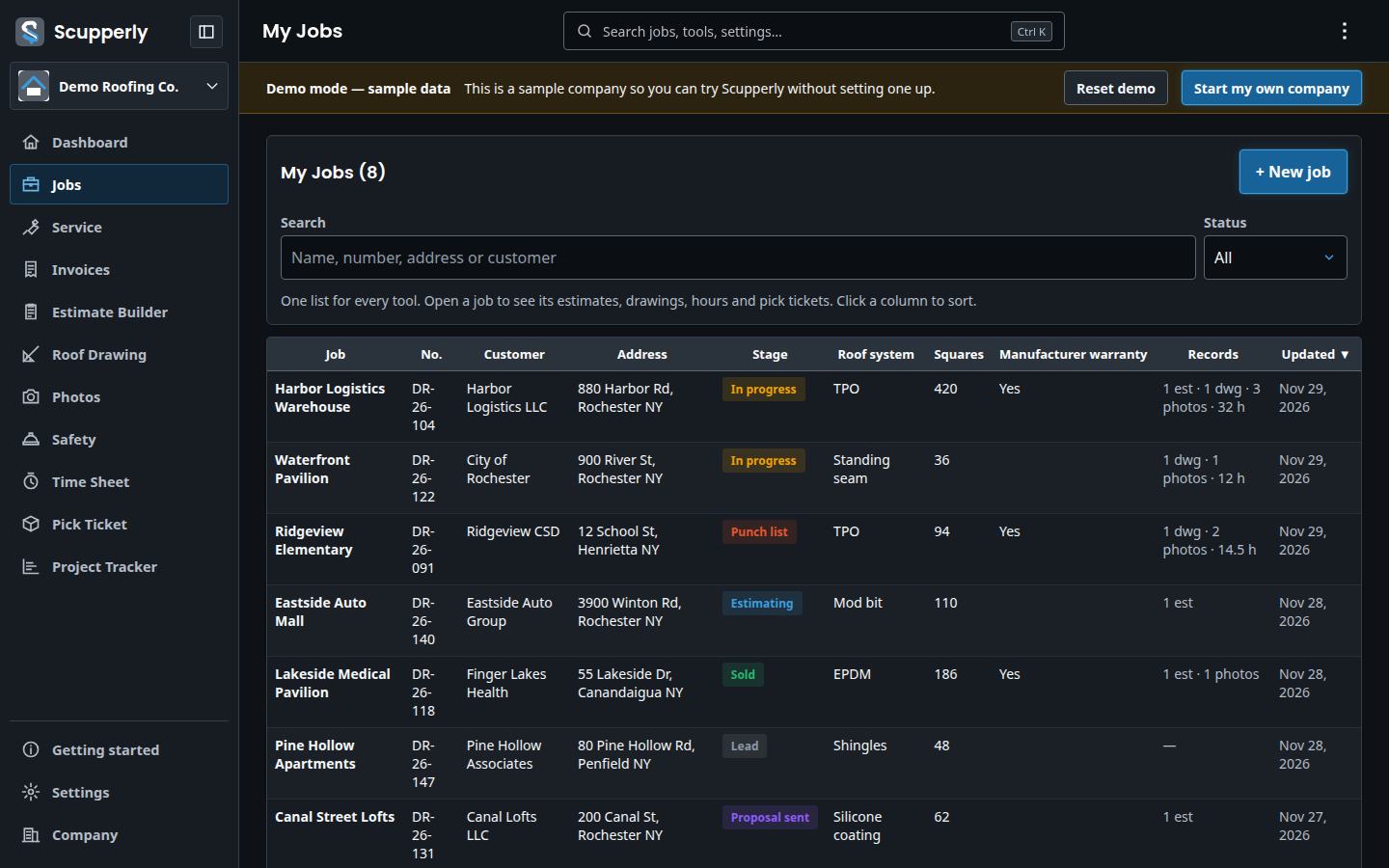
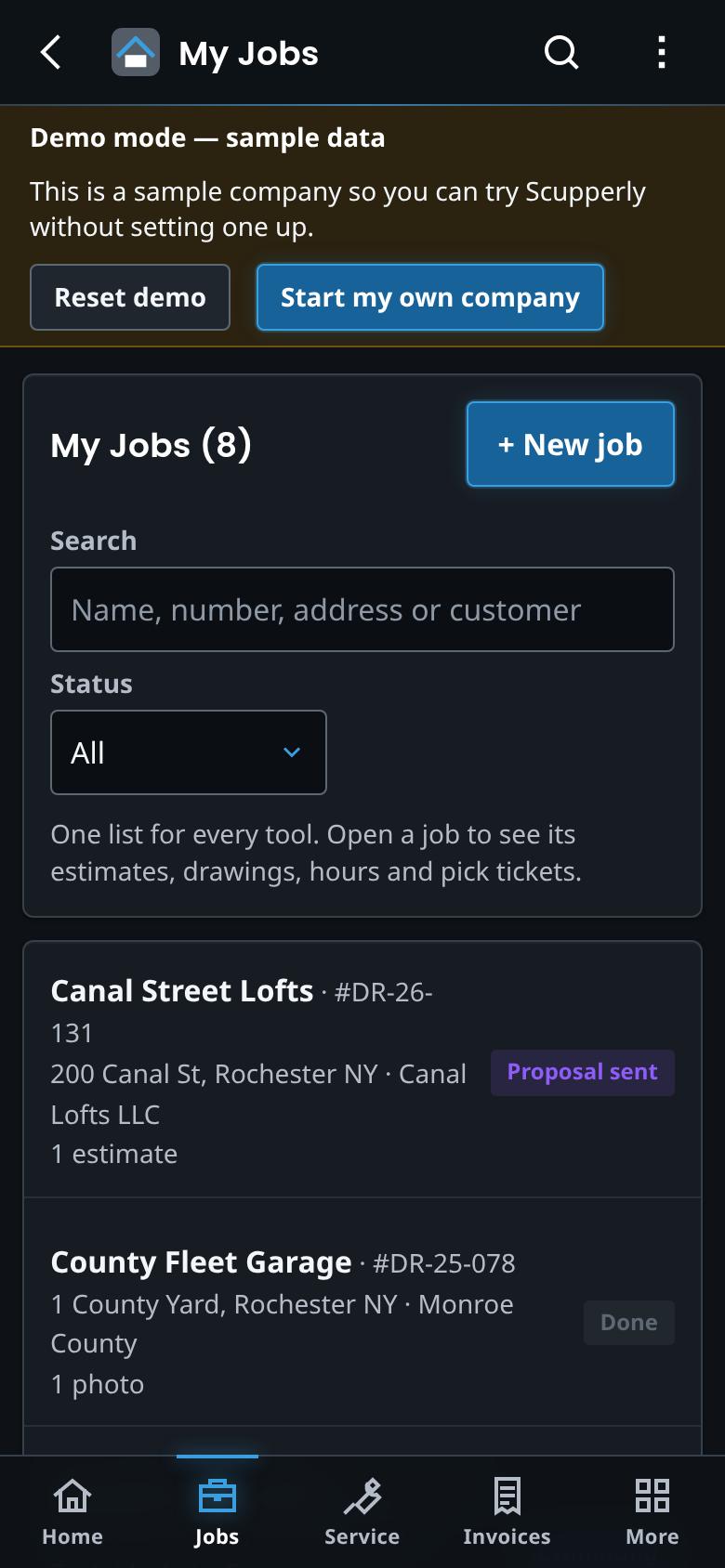
Open My Jobs and tap New job. Type the job name, the address and the customer. That job is the folder for everything else.
The pipeline is the stage list: Lead, Estimating, Proposal sent, Sold, In progress, Punch list, Done. In Settings you can rename a stage, change its color, reorder the list, and mark which stages count as active or finished.
- Sort and filter the job list.
- Open a job to see its estimate, drawing and photos in one place.
- Custom fields for things like roof system and squares.
Photos you can mark up
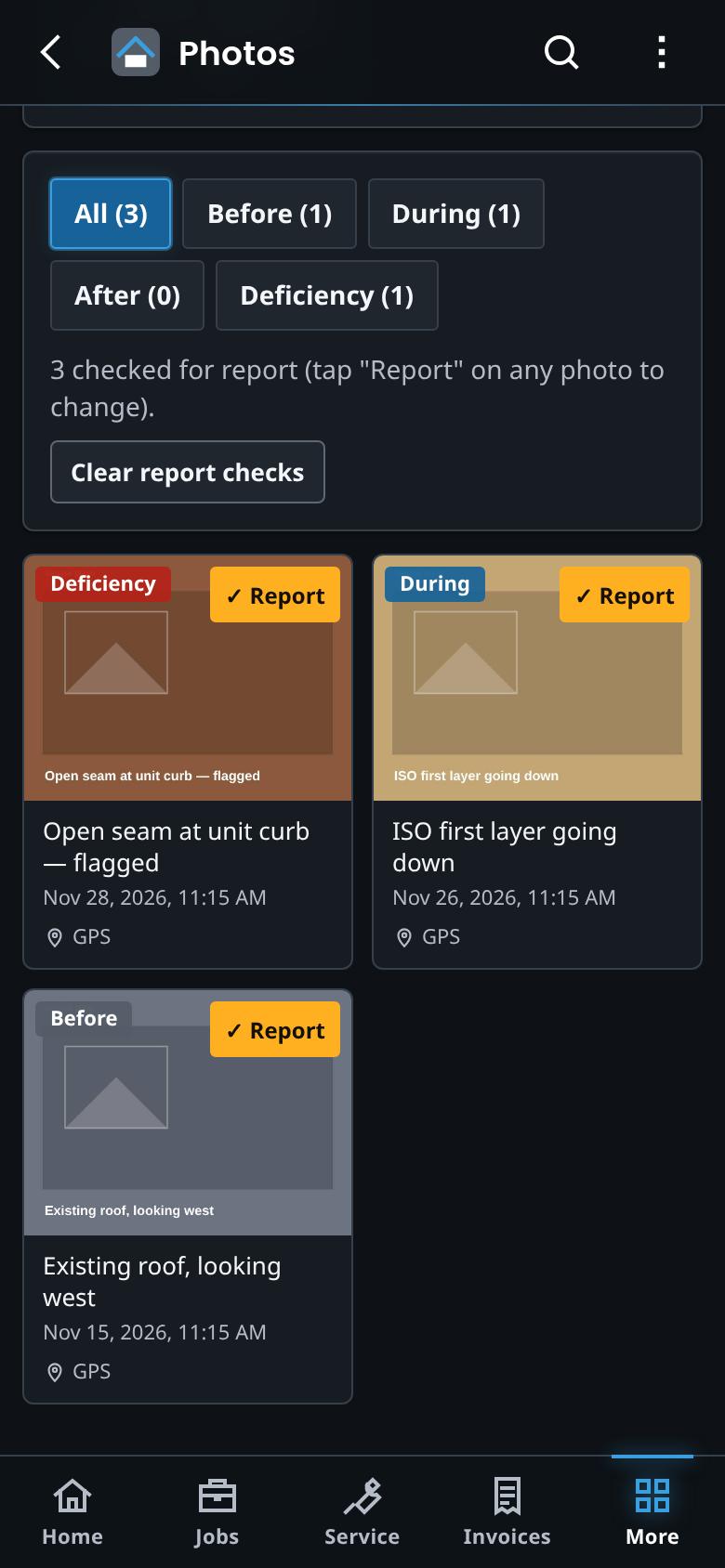
Open Photos, pick the job, and shoot. Or upload pictures you already took. They save on the device right away, even with no signal.
Tap a photo to mark it up: write a caption, or use the mic and say what you see. Then pick a tag.
- Tags: Before, During, After, Deficiency.
- Filter the gallery by tag when you need the deficiencies fast.
- Tap Report on the photos you want, then Photo Report, then Print / Save PDF. Your company name and logo go on the sheet.
Roof drawing
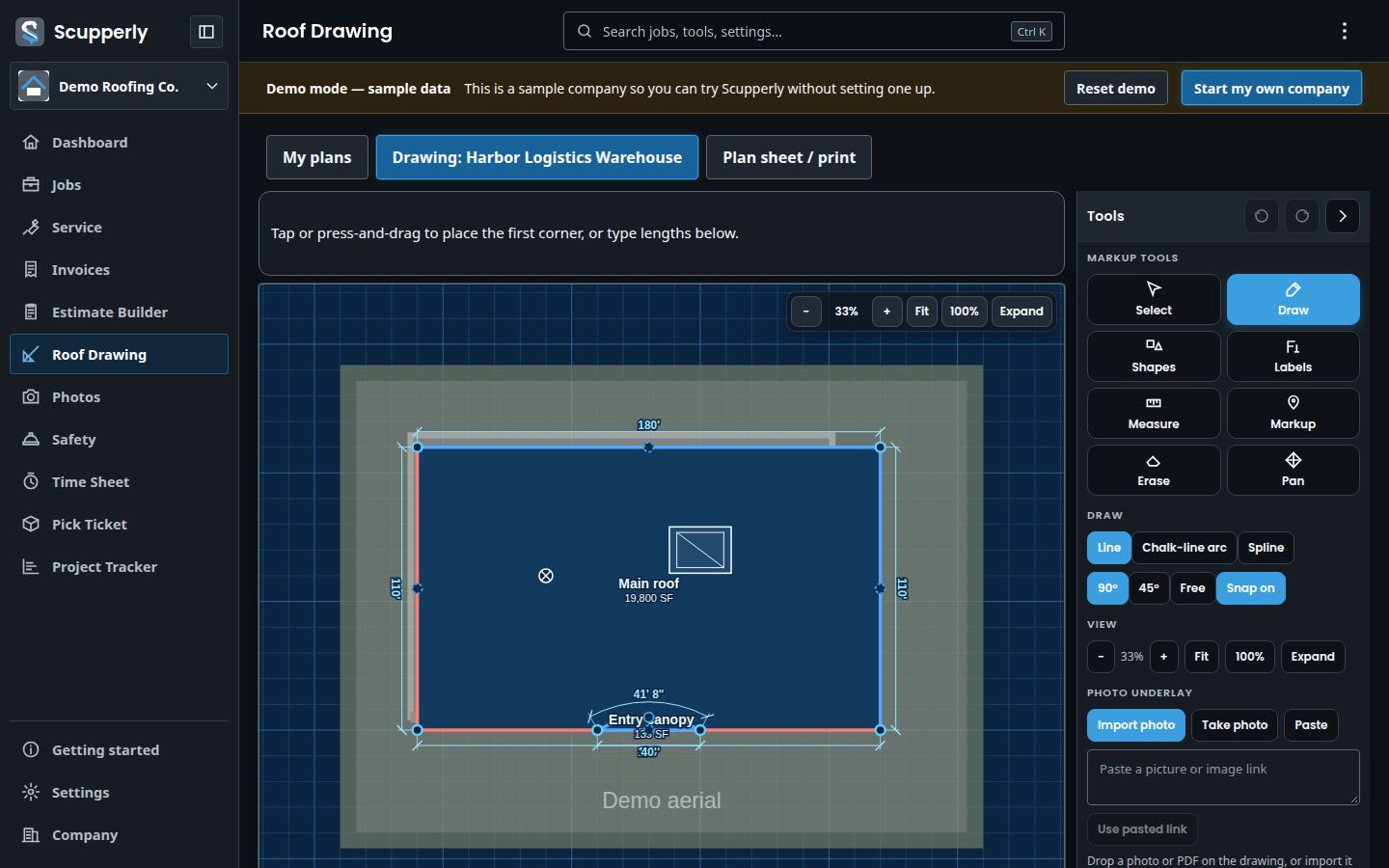
Open Roof Drawing and pick the job. On a computer the tools sit in a panel on the right. On a phone they are buttons along the top. Tap each corner. Close the shape on the first corner to finish a section. Type a length on any wall to set it exactly.
Photo underlay
Load an aerial or any photo under the drawing. A screenshot of a satellite view works. Fade it, resize it, rotate it and move it until the walls line up. Lock it, then trace on top.
Curved walls, the chalk-line way
Pick Chalk-line arc. Tap point A, then point B. Enter the chalk-line length from A to B, and the middle measurement: how far the wall bows out from the middle of that line. Scupperly draws the arc and labels the true curved length, which is longer than the straight chalk line. The radius sits under Advanced if you need the number. This is the same way you would measure it on the roof: snap a line from A to B, then measure out from the middle.
Measurements
Every wall shows its length. Curved walls show the curved length, and the straight chord keeps its own length. Each section shows square feet and squares. Edge metal and the perimeter totals include the curves. Circles and ellipses show the circumference outside the shape.
Markup on the plan
The markup tools drop a deficiency pin, or outline a ponding area, a wet-insulation area, or a damaged area. Those notes ride along when you send the drawing to the estimate.
Plan sheet
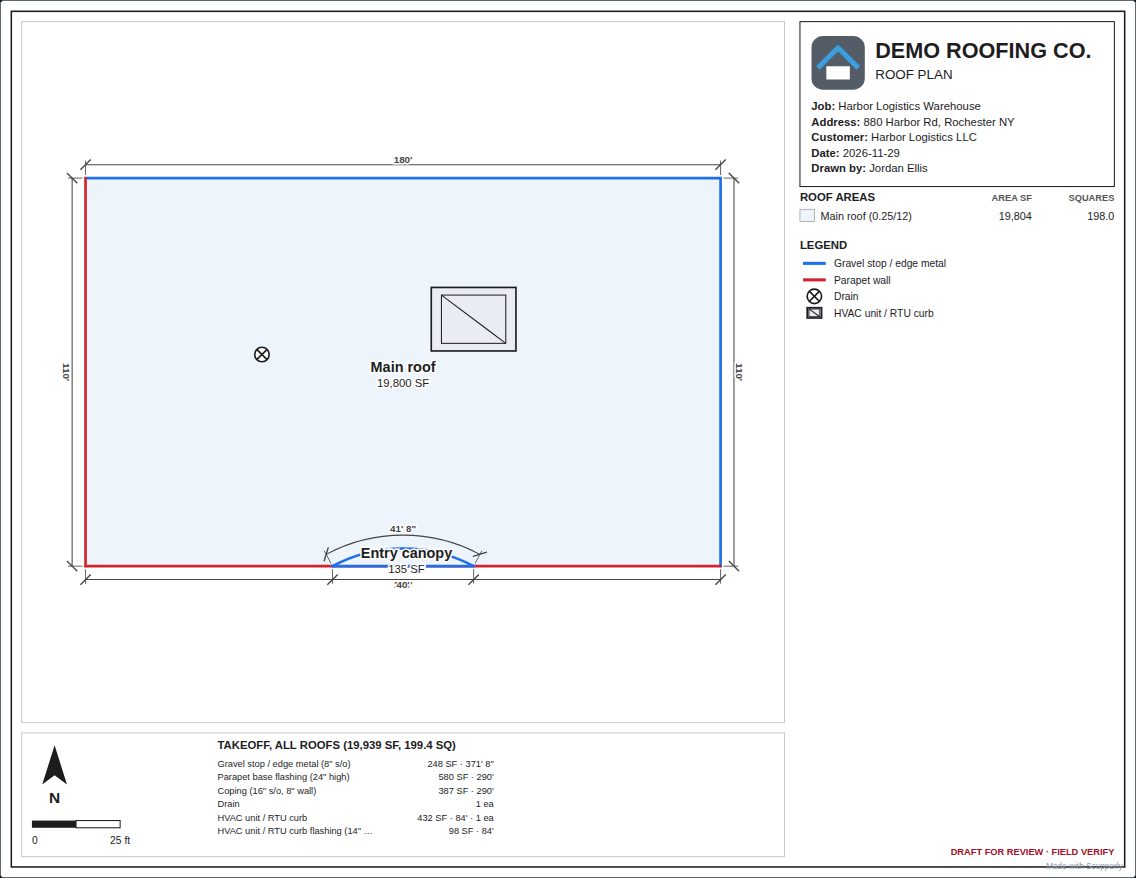
Plan sheet / print builds the sheet: the drawing, roof areas, a legend and a title block with your company name. Print / Save PDF. On a phone, choose Save as PDF. On a computer, pick Save as PDF as the printer. Zoom is for the drawing only: pinch, hold Ctrl and scroll, or use Fit, 100% and Expand.
Material estimate
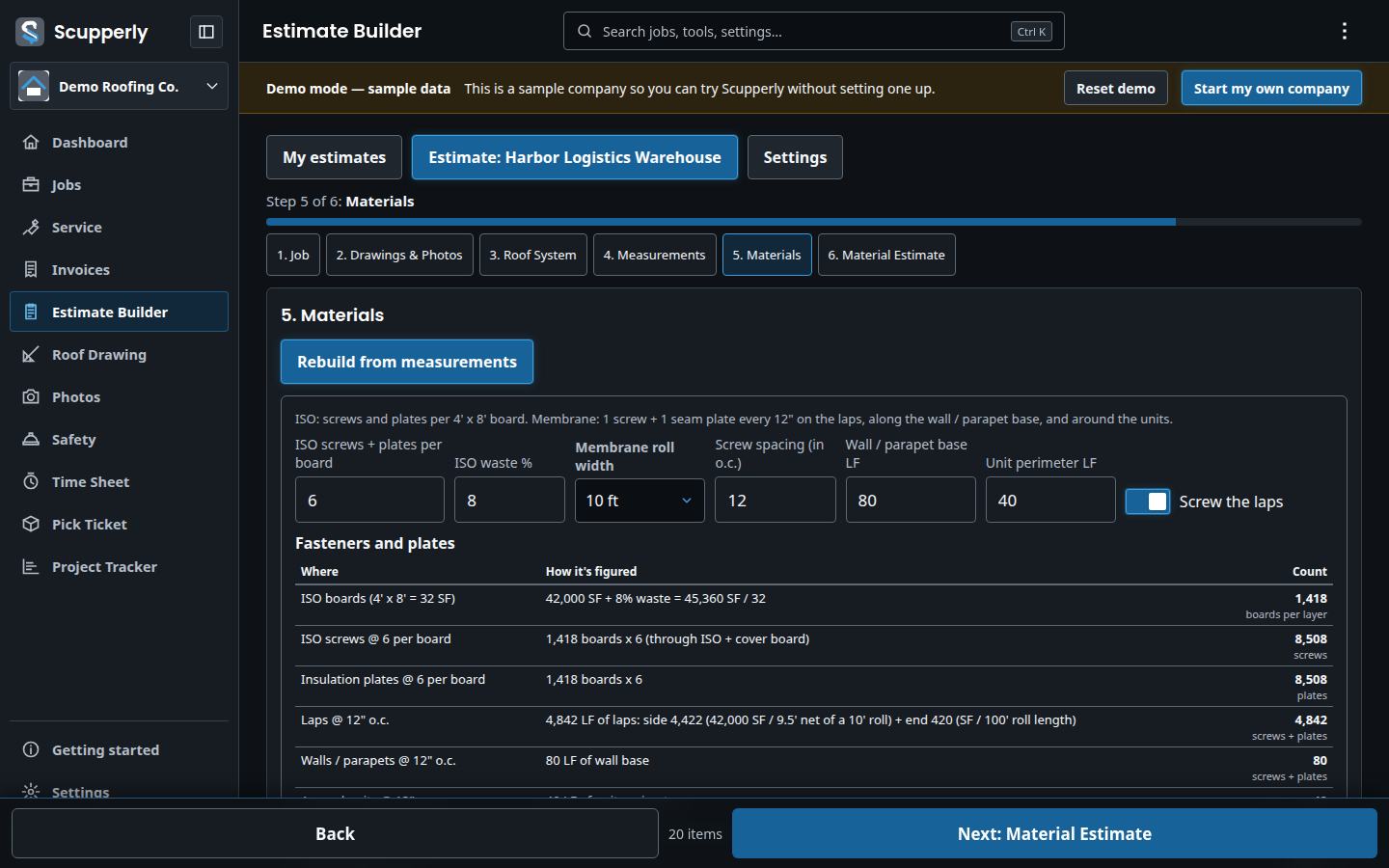
Pick the roof you are installing. TPO recover or tear-off, EPDM, silicone coating, standing seam, exposed-fastener metal, architectural shingles, or a patch. Enter the measurements, or load them from the roof drawing. Scupperly builds the material list from that: membrane, insulation, cover board, edge metal, screws and plates, with waste rounded up to whole pieces.
In the pilot the brand box starts blank. Type the brand you actually buy. Product names stay generic, so the same list works for any manufacturer. You can edit a catalog item to match what your supplier calls it. Supplier prices are not filled in. You put in your own numbers. Nothing locks you to a catalog price.
- Fastener counts: ISO screws and plates per board, and seam screws along the laps, the wall and the units.
- Rebuild the list after you change a measurement. Items you added by hand stay put.
- Print / Save PDF: a cover page, the roof plan, then the material list.
Install it. Use it offline.
Scupperly is an installable app. On a phone, add it to the home screen. On a computer, install it from the browser. It runs on its own, without a tab full of other stuff.
The first open needs a connection so the app can save itself on the device. After that it works with no signal. Photos, jobs, drawings and material lists stay on that device until cloud accounts exist. Your company name and logo go on the printouts.
Coming soon
You can open invoices and leak calls in the pilot and click around. They are filled with sample customers so you can see the shape of the office side. Nothing is saved or sent, and that preview resets when you close the app.
- Invoicing and pay applications. A deposit or a progress application from the job, aging, and the page the customer would see.
- Service department. Take a leak call, put it on a board, and run the ticket from the phone: on the way, on site, photos, signature.
- Safety. An editable jobsite checklist, scores and a monthly log. Hidden in the pilot for now.
- Time tracking. Clock in and out on a job, with weekly hours. Hidden in the pilot for now.
- Pick tickets. One page for the shop, built from the material list. Hidden in the pilot for now.